<?xml version="1.0" encoding="utf-8"?>
<feed xmlns="http://www.w3.org/2005/Atom">

  <title><![CDATA[less ./b00010111/blog]]></title>
  <link href="https://www.00010111.at/atom.xml" rel="self"/>
  <link href="https://www.00010111.at/"/>
  <updated>2020-09-08T17:53:12+02:00</updated>
  <id>https://www.00010111.at/</id>
  <author>
    <name><![CDATA[Olaf Schwarz]]></name>
    
  </author>
  <generator uri="http://octopress.org/">Octopress</generator>

  
  <entry>
    <title type="html"><![CDATA[volshell process examination notes]]></title>
    <link href="https://www.00010111.at/blog/2020/09/08/volshell-process-examination-notes/"/>
    <updated>2020-09-08T16:38:07+02:00</updated>
    <id>https://www.00010111.at/blog/2020/09/08/volshell-process-examination-notes</id>
    <content type="html"><![CDATA[<p>I recently played around a little bit with volshell, as I had realized I do not have sufficient notes on how to use it. I&rsquo;ll share the notes below.<p>
Volshell uses virtual memory addresses, if you are searching or using offsets keep that in mind.
Starting volshell without entering the context of a process is pretty straigh forward.</p>

<figure class='code'><div class="highlight"><table><tr><td class="gutter"><pre class="line-numbers"><span class='line-number'>1</span>
</pre></td><td class='code'><pre><code class='bash'><span class='line'>vol.py -f memory_img.raw --kdbg<span class="o">=</span><span class="nv">$KDBG_OFSETT</span> --profile<span class="o">=</span><span class="nv">$VOLATILITY_PROFILE</span> volshell
</span></code></pre></td></tr></table></div></figure>


<p>Getting some help for the first usage can be done by the hh() command.</p>

<figure class='code'><div class="highlight"><table><tr><td class="gutter"><pre class="line-numbers"><span class='line-number'>1</span>
<span class='line-number'>2</span>
<span class='line-number'>3</span>
<span class='line-number'>4</span>
<span class='line-number'>5</span>
<span class='line-number'>6</span>
<span class='line-number'>7</span>
<span class='line-number'>8</span>
<span class='line-number'>9</span>
<span class='line-number'>10</span>
<span class='line-number'>11</span>
<span class='line-number'>12</span>
<span class='line-number'>13</span>
<span class='line-number'>14</span>
<span class='line-number'>15</span>
<span class='line-number'>16</span>
<span class='line-number'>17</span>
<span class='line-number'>18</span>
<span class='line-number'>19</span>
<span class='line-number'>20</span>
<span class='line-number'>21</span>
<span class='line-number'>22</span>
<span class='line-number'>23</span>
<span class='line-number'>24</span>
<span class='line-number'>25</span>
<span class='line-number'>26</span>
</pre></td><td class='code'><pre><code class=''><span class='line'>In [1]: hh()
</span><span class='line'>
</span><span class='line'>Use addrspace() for Kernel/Virtual AS
</span><span class='line'>Use addrspace().base for Physical AS
</span><span class='line'>Use proc() to get the current process object
</span><span class='line'>  and proc().get_process_address_space() for the current process AS
</span><span class='line'>  and proc().get_load_modules() for the current process DLLs
</span><span class='line'>
</span><span class='line'>addrspace()                              : Get the current kernel/virtual address space. 
</span><span class='line'>cc(offset=None, pid=None, name=None, physical=False) : Change current shell context.
</span><span class='line'>db(address, length=128, space=None)      : Print bytes as canonical hexdump.
</span><span class='line'>dd(address, length=128, space=None)      : Print dwords at address.
</span><span class='line'>dis(address, length=128, space=None, mode=None) : Disassemble code at a given address.
</span><span class='line'>dq(address, length=128, space=None)      : Print qwords at address.
</span><span class='line'>dt(objct, address=None, space=None, recursive=False, depth=0) : Describe an object or show type info.
</span><span class='line'>find(needle, max=1, shift=0, skip=0, count=False, length=128) : 
</span><span class='line'>getmods()                                : Generator for kernel modules (scripting).
</span><span class='line'>getprocs()                               : Generator of process objects (scripting).
</span><span class='line'>hh(cmd=None)                             : Get help on a command.
</span><span class='line'>list_entry(head, objname, offset=-1, fieldname=None, forward=True, space=None) : Traverse a _LIST_ENTRY.
</span><span class='line'>modules()                                : Print loaded modules in a table view.
</span><span class='line'>proc()                                   : Get the current process object.
</span><span class='line'>ps()                                     : Print active processes in a table view.
</span><span class='line'>sc()                                     : Show the current context.
</span><span class='line'>
</span><span class='line'>For help on a specific command, type 'hh(&lt;command>)'</span></code></pre></td></tr></table></div></figure>


<p>To list the processes you can run the ps() command within the interactive volshell prompt.</p>

<figure class='code'><div class="highlight"><table><tr><td class="gutter"><pre class="line-numbers"><span class='line-number'>1</span>
<span class='line-number'>2</span>
<span class='line-number'>3</span>
<span class='line-number'>4</span>
<span class='line-number'>5</span>
<span class='line-number'>6</span>
<span class='line-number'>7</span>
</pre></td><td class='code'><pre><code class=''><span class='line'>In [1]: ps()
</span><span class='line'>Name             PID    PPID   Offset  
</span><span class='line'>System           4      0      0x85c50958
</span><span class='line'>smss.exe         280    4      0x86ecaa70
</span><span class='line'>csrss.exe        412    404    0x86cfa540
</span><span class='line'>wininit.exe      464    404    0x87d85d40
</span><span class='line'>&lt;snip></span></code></pre></td></tr></table></div></figure>


<p>This output gives you an overview about the name, the process id (PID), the parent process (PPID) and the offset of each process.
The PID or the name can be used to change the context to a specific process, more on this can be seen below. For now we will work with the offset only.</p>

<p>In order to make structures like the Proccess Environment Block (PCB) accessible, volatility has its own structures. To view one of those structures you can use the dt() command.<br>
If you would like to understand what the _EPROCESS structure contains use:</p>

<figure class='code'><div class="highlight"><table><tr><td class="gutter"><pre class="line-numbers"><span class='line-number'>1</span>
<span class='line-number'>2</span>
<span class='line-number'>3</span>
<span class='line-number'>4</span>
<span class='line-number'>5</span>
<span class='line-number'>6</span>
<span class='line-number'>7</span>
<span class='line-number'>8</span>
<span class='line-number'>9</span>
<span class='line-number'>10</span>
<span class='line-number'>11</span>
<span class='line-number'>12</span>
<span class='line-number'>13</span>
<span class='line-number'>14</span>
<span class='line-number'>15</span>
</pre></td><td class='code'><pre><code class=''><span class='line'>In [5]: dt("_EPROCESS")
</span><span class='line'> '_EPROCESS' (728 bytes)
</span><span class='line'>0x0   : Pcb                            ['_KPROCESS']
</span><span class='line'>0x98  : ProcessLock                    ['_EX_PUSH_LOCK']
</span><span class='line'>0xa0  : CreateTime                     ['WinTimeStamp', {'is_utc': True}]
</span><span class='line'>0xa8  : ExitTime                       ['WinTimeStamp', {'is_utc': True}]
</span><span class='line'>0xb0  : RundownProtect                 ['_EX_RUNDOWN_REF']
</span><span class='line'>0xb4  : UniqueProcessId                ['unsigned int']
</span><span class='line'>0xb8  : ActiveProcessLinks             ['_LIST_ENTRY']
</span><span class='line'>0xc0  : ProcessQuotaUsage              ['array', 2, ['unsigned long']]
</span><span class='line'>0xc8  : ProcessQuotaPeak               ['array', 2, ['unsigned long']]
</span><span class='line'>0xd0  : CommitCharge                   ['unsigned long']
</span><span class='line'>&lt;snip>
</span><span class='line'>0x1a8 : Peb                            ['pointer', ['_PEB']]
</span><span class='line'>&lt;snip></span></code></pre></td></tr></table></div></figure>


<p>As you can see above, at the offset of 0x1a8 in the _EPROCESS structure, the Process Environment Block (PEB) can be found. It is a pointer, pointing to a structure named _PEB.
If we would like to understand the _PEB structure, we can again use the dt() command.</p>

<figure class='code'><div class="highlight"><table><tr><td class="gutter"><pre class="line-numbers"><span class='line-number'>1</span>
<span class='line-number'>2</span>
<span class='line-number'>3</span>
<span class='line-number'>4</span>
<span class='line-number'>5</span>
<span class='line-number'>6</span>
<span class='line-number'>7</span>
<span class='line-number'>8</span>
<span class='line-number'>9</span>
<span class='line-number'>10</span>
<span class='line-number'>11</span>
<span class='line-number'>12</span>
<span class='line-number'>13</span>
<span class='line-number'>14</span>
<span class='line-number'>15</span>
</pre></td><td class='code'><pre><code class=''><span class='line'>In [6]: dt("_PEB")
</span><span class='line'> '_PEB' (584 bytes)
</span><span class='line'>0x0   : InheritedAddressSpace          ['unsigned char']
</span><span class='line'>0x1   : ReadImageFileExecOptions       ['unsigned char']
</span><span class='line'>0x2   : BeingDebugged                  ['unsigned char']
</span><span class='line'>0x3   : BitField                       ['unsigned char']
</span><span class='line'>0x3   : ImageUsesLargePages            ['BitField', {'end_bit': 1, 'start_bit': 0, 'native_type': 'unsigned char'}]
</span><span class='line'>0x3   : IsImageDynamicallyRelocated    ['BitField', {'end_bit': 4, 'start_bit': 3, 'native_type': 'unsigned char'}]
</span><span class='line'>0x3   : IsLegacyProcess                ['BitField', {'end_bit': 3, 'start_bit': 2, 'native_type': 'unsigned char'}]
</span><span class='line'>0x3   : IsProtectedProcess             ['BitField', {'end_bit': 2, 'start_bit': 1, 'native_type': 'unsigned char'}]
</span><span class='line'>0x3   : SkipPatchingUser32Forwarders   ['BitField', {'end_bit': 5, 'start_bit': 4, 'native_type': 'unsigned char'}]
</span><span class='line'>0x3   : SpareBits                      ['BitField', {'end_bit': 8, 'start_bit': 5, 'native_type': 'unsigned char'}]
</span><span class='line'>&lt;snip>
</span><span class='line'>0x10  : ProcessParameters              ['pointer', ['_RTL_USER_PROCESS_PARAMETERS']]
</span><span class='line'>&lt;snip></span></code></pre></td></tr></table></div></figure>


<p>If we would like to know more about the process parameters we can learn that from the _RTL_USER_PROCESS_PARAMETERS structure, which is part of the Process Environment Block. For example it contains the command line the process was started with.<br>
You can use these defined structures as an overlay for every offset. Volshell will than use the given structure and fill it with data starting the offset provided. As memory is just bits and bytes, the overlay can be applied to addresses not representing the corresponding structure. Be warned to double check your offsets and validate the output.<br>
In order to use a structure as an overlay at a specific offset you have to tell volshell the offset. You can do this by providing it as a second parameter to the dt() command: dt(&ldquo;$STRUCTUR_NAME&rdquo;, $HEXADECIMAL_OFFSET)</p>

<p>So lets start to dig down and see what the command line of the process cmd process was.
Fist step is to determine the offset by looking at the ps() command output</p>

<figure class='code'><div class="highlight"><table><tr><td class="gutter"><pre class="line-numbers"><span class='line-number'>1</span>
<span class='line-number'>2</span>
<span class='line-number'>3</span>
<span class='line-number'>4</span>
<span class='line-number'>5</span>
</pre></td><td class='code'><pre><code class=''><span class='line'>In [1]: ps()
</span><span class='line'>Name             PID    PPID   Offset  
</span><span class='line'>&lt;snip>
</span><span class='line'>cmd.exe          208    1208   0x860f2578
</span><span class='line'>&lt;snip></span></code></pre></td></tr></table></div></figure>


<p>Next use the _EPROCESS structure as on overlay at the offset of the process</p>

<figure class='code'><div class="highlight"><table><tr><td class="gutter"><pre class="line-numbers"><span class='line-number'>1</span>
<span class='line-number'>2</span>
<span class='line-number'>3</span>
<span class='line-number'>4</span>
<span class='line-number'>5</span>
<span class='line-number'>6</span>
<span class='line-number'>7</span>
<span class='line-number'>8</span>
<span class='line-number'>9</span>
<span class='line-number'>10</span>
<span class='line-number'>11</span>
<span class='line-number'>12</span>
</pre></td><td class='code'><pre><code class=''><span class='line'>In [2]: dt("_EPROCESS", 0x862f9a58)
</span><span class='line'>[_EPROCESS _EPROCESS] @ 0x862F9A58
</span><span class='line'>0x0   : Pcb                            2251266648
</span><span class='line'>0x98  : ProcessLock                    2251266800
</span><span class='line'>0xa0  : CreateTime                     2012-04-06 14:03:11 UTC+0000
</span><span class='line'>0xa8  : ExitTime                       1970-01-01 00:00:00 UTC+0000
</span><span class='line'>0xb0  : RundownProtect                 2251266824
</span><span class='line'>0xb4  : UniqueProcessId                5192
</span><span class='line'>0xb8  : ActiveProcessLinks             2251266832
</span><span class='line'>&lt;snip>
</span><span class='line'>0x1a8 : Peb                            2147348480 
</span><span class='line'>&lt;snip></span></code></pre></td></tr></table></div></figure>


<p>Given the output above, we can see that the Process Environment Block points to 2147348480. This value is in decimal and we will convert it into hex in a standard bash shell:</p>

<figure class='code'><div class="highlight"><table><tr><td class="gutter"><pre class="line-numbers"><span class='line-number'>1</span>
<span class='line-number'>2</span>
</pre></td><td class='code'><pre><code class='bash'><span class='line'>~<span class="nv">$ </span><span class="nb">printf</span> <span class="s1">&#39;0x%x\n&#39;</span> 2147348480
</span><span class='line'>0x7ffdf000
</span></code></pre></td></tr></table></div></figure>


<p>If we are not changing the context to the process we are investigating we might get the following error.</p>

<figure class='code'><div class="highlight"><table><tr><td class="gutter"><pre class="line-numbers"><span class='line-number'>1</span>
<span class='line-number'>2</span>
<span class='line-number'>3</span>
<span class='line-number'>4</span>
</pre></td><td class='code'><pre><code class=''><span class='line'>In [7]: dt('_PEB',0x7FFDF000)
</span><span class='line'>ERROR: could not instantiate object
</span><span class='line'>
</span><span class='line'>Reason:  Invalid Address 0x7FFDF000, instantiating _PEB</span></code></pre></td></tr></table></div></figure>


<p>So it is time to switch context and apply the above command again:</p>

<figure class='code'><div class="highlight"><table><tr><td class="gutter"><pre class="line-numbers"><span class='line-number'>1</span>
<span class='line-number'>2</span>
<span class='line-number'>3</span>
<span class='line-number'>4</span>
<span class='line-number'>5</span>
<span class='line-number'>6</span>
<span class='line-number'>7</span>
<span class='line-number'>8</span>
<span class='line-number'>9</span>
<span class='line-number'>10</span>
<span class='line-number'>11</span>
<span class='line-number'>12</span>
<span class='line-number'>13</span>
<span class='line-number'>14</span>
<span class='line-number'>15</span>
</pre></td><td class='code'><pre><code class=''><span class='line'>In [8]: cc(pid=208)
</span><span class='line'>Current context: cmd.exe @ 0x860f2578, pid=208, ppid=1208 DTB=0x7ecce4c0
</span><span class='line'>
</span><span class='line'>In [9]: dt('_PEB',0x7FFDF000)
</span><span class='line'>[CType _PEB] @ 0x7FFDF000
</span><span class='line'>0x0   : InheritedAddressSpace          0
</span><span class='line'>0x1   : ReadImageFileExecOptions       0
</span><span class='line'>0x2   : BeingDebugged                  0
</span><span class='line'>0x3   : BitField                       8
</span><span class='line'>0x3   : ImageUsesLargePages            0
</span><span class='line'>0x3   : IsImageDynamicallyRelocated    1
</span><span class='line'>0x3   : IsLegacyProcess                0
</span><span class='line'>&lt;snip>
</span><span class='line'>0x10  : ProcessParameters              3674456
</span><span class='line'>&lt;snip></span></code></pre></td></tr></table></div></figure>


<p>Our ProcessParameters are located at 3674456, which is 0x381158 in hex. Using the _RTL_USER_PROCESS_PARAMETER overlay and calculated offset, we can already see the command line used to start the process.</p>

<figure class='code'><div class="highlight"><table><tr><td class="gutter"><pre class="line-numbers"><span class='line-number'>1</span>
<span class='line-number'>2</span>
<span class='line-number'>3</span>
<span class='line-number'>4</span>
<span class='line-number'>5</span>
<span class='line-number'>6</span>
<span class='line-number'>7</span>
<span class='line-number'>8</span>
<span class='line-number'>9</span>
<span class='line-number'>10</span>
<span class='line-number'>11</span>
<span class='line-number'>12</span>
<span class='line-number'>13</span>
<span class='line-number'>14</span>
<span class='line-number'>15</span>
<span class='line-number'>16</span>
<span class='line-number'>17</span>
<span class='line-number'>18</span>
<span class='line-number'>19</span>
</pre></td><td class='code'><pre><code class=''><span class='line'>In [12]: dt("_RTL_USER_PROCESS_PARAMETERS", 0x381158)
</span><span class='line'>[CType _RTL_USER_PROCESS_PARAMETERS] @ 0x00381158
</span><span class='line'>0x0   : MaximumLength                  1728
</span><span class='line'>0x4   : Length                         1728
</span><span class='line'>0x8   : Flags                          24577
</span><span class='line'>0xc   : DebugFlags                     0
</span><span class='line'>0x10  : ConsoleHandle                  2840
</span><span class='line'>0x14  : ConsoleFlags                   0
</span><span class='line'>0x18  : StandardInput                  628
</span><span class='line'>0x1c  : StandardOutput                 624
</span><span class='line'>0x20  : StandardError                  624
</span><span class='line'>0x24  : CurrentDirectory               3674492
</span><span class='line'>0x30  : DllPath                        C:\Windows\system32;C:\Windows\system32;C:\Windows\system;C:\Windows;.;C:\Windows\system32;C:\Windows;C:\Windows\System32\Wbem;C:\Windows\System32\WindowsPowerShell\v1.0\
</span><span class='line'>0x38  : ImagePathName                  C:\Windows\system32\cmd.exe
</span><span class='line'>0x40  : CommandLine                    C:\Windows\system32\cmd.exe
</span><span class='line'>0x48  : Environment                    3748560
</span><span class='line'>&lt;snip>
</span><span class='line'>0x290 : EnvironmentSize                2484
</span><span class='line'>0x294 : EnvironmentVersion             5</span></code></pre></td></tr></table></div></figure>


<p>But what if we want to see the content of the environment variables of the process?</p>

<figure class='code'><div class="highlight"><table><tr><td class="gutter"><pre class="line-numbers"><span class='line-number'>1</span>
<span class='line-number'>2</span>
<span class='line-number'>3</span>
<span class='line-number'>4</span>
<span class='line-number'>5</span>
<span class='line-number'>6</span>
</pre></td><td class='code'><pre><code class=''><span class='line'>dt("_RTL_USER_PROCESS_PARAMETERS") shows us the following:
</span><span class='line'>&lt;snip>
</span><span class='line'>0x48  : Environment                    ['pointer', ['void']]
</span><span class='line'>&lt;snip>
</span><span class='line'>0x290 : EnvironmentSize                ['unsigned long']
</span><span class='line'>0x294 : EnvironmentVersion             ['unsigned long']</span></code></pre></td></tr></table></div></figure>


<p>So it seems we cannot apply a predefined structure to view the content of the environment variables. How about to dump them with the db() command?
Again we converted the decimal pointer value (in this case to Environemt) to hex.</p>

<figure class='code'><div class="highlight"><table><tr><td class="gutter"><pre class="line-numbers"><span class='line-number'>1</span>
<span class='line-number'>2</span>
<span class='line-number'>3</span>
<span class='line-number'>4</span>
<span class='line-number'>5</span>
<span class='line-number'>6</span>
<span class='line-number'>7</span>
<span class='line-number'>8</span>
<span class='line-number'>9</span>
</pre></td><td class='code'><pre><code class=''><span class='line'>In [16]: db (0x3932d0)
</span><span class='line'>0x003932d0  3d 00 43 00 3a 00 3d 00 43 00 3a 00 5c 00 57 00   =.C.:.=.C.:.\.W.
</span><span class='line'>0x003932e0  69 00 6e 00 64 00 6f 00 77 00 73 00 5c 00 53 00   i.n.d.o.w.s.\.S.
</span><span class='line'>0x003932f0  79 00 73 00 74 00 65 00 6d 00 33 00 32 00 5c 00   y.s.t.e.m.3.2.\.
</span><span class='line'>0x00393300  64 00 6c 00 6c 00 68 00 6f 00 73 00 74 00 00 00   d.l.l.h.o.s.t...
</span><span class='line'>0x00393310  41 00 4c 00 4c 00 55 00 53 00 45 00 52 00 53 00   A.L.L.U.S.E.R.S.
</span><span class='line'>0x00393320  50 00 52 00 4f 00 46 00 49 00 4c 00 45 00 3d 00   P.R.O.F.I.L.E.=.
</span><span class='line'>0x00393330  43 00 3a 00 5c 00 50 00 72 00 6f 00 67 00 72 00   C.:.\.P.r.o.g.r.
</span><span class='line'>0x00393340  61 00 6d 00 44 00 61 00 74 00 61 00 00 00 41 00   a.m.D.a.t.a...A.</span></code></pre></td></tr></table></div></figure>


<p>In order to view the complete content we need to overwrite the default returned size of 1024. Lucky for us the size of the environment is part of the _RTL_USER_PROCESS_PARAMETER structure.</p>

<figure class='code'><div class="highlight"><table><tr><td class="gutter"><pre class="line-numbers"><span class='line-number'>1</span>
<span class='line-number'>2</span>
</pre></td><td class='code'><pre><code class=''><span class='line'>In [17]: db (0x3932d0, 2484)
</span><span class='line'>In [18]: db (0x3932d0, 0x9b4)</span></code></pre></td></tr></table></div></figure>


<p>Both will return the complete content of the environment variables for the given process. This first command supplies the length db() should read and return in decimal form, the second used hexadecimal.</p>

<p>If you do not want to deal with the offsets, there is a different way as well.<br>
We start volshell again and directly jump into the context of the process by supplying the -p $PID parameter, in our example we jump to the process used above (PID 208).</p>

<figure class='code'><div class="highlight"><table><tr><td class="gutter"><pre class="line-numbers"><span class='line-number'>1</span>
</pre></td><td class='code'><pre><code class='bash'><span class='line'>vol.py -f memory_img.raw --kdbg<span class="o">=</span><span class="nv">$KDBG_OFSETT</span> --profile<span class="o">=</span><span class="nv">$VOLATILITY_PROFILE</span> volshell -p 208
</span></code></pre></td></tr></table></div></figure>


<p>We are now already in the context of the process with PID 208 and we can reference the structures via &ldquo;self&rdquo; for the selected process. Of cause you can also reference structures via &ldquo;self&rdquo; if you manually switched the context to the process you are investigating via cc(pid=$PID_OF_CHOICE).</p>

<figure class='code'><div class="highlight"><table><tr><td class="gutter"><pre class="line-numbers"><span class='line-number'>1</span>
<span class='line-number'>2</span>
<span class='line-number'>3</span>
<span class='line-number'>4</span>
<span class='line-number'>5</span>
<span class='line-number'>6</span>
<span class='line-number'>7</span>
<span class='line-number'>8</span>
<span class='line-number'>9</span>
<span class='line-number'>10</span>
<span class='line-number'>11</span>
<span class='line-number'>12</span>
<span class='line-number'>13</span>
<span class='line-number'>14</span>
<span class='line-number'>15</span>
<span class='line-number'>16</span>
<span class='line-number'>17</span>
</pre></td><td class='code'><pre><code class=''><span class='line'>In [2]: dt(self._proc)
</span><span class='line'>[_EPROCESS _EPROCESS] @ 0x860F2578
</span><span class='line'>0x0   : Pcb                            2249139576
</span><span class='line'>0x98  : ProcessLock                    2249139728
</span><span class='line'>0xa0  : CreateTime                     2012-04-04 18:43:24 UTC+0000
</span><span class='line'>0xa8  : ExitTime                       1970-01-01 00:00:00 UTC+0000
</span><span class='line'>0xb0  : RundownProtect                 2249139752
</span><span class='line'>0xb4  : UniqueProcessId                208
</span><span class='line'>0xb8  : ActiveProcessLinks             2249139760
</span><span class='line'>0xc0  : ProcessQuotaUsage              -
</span><span class='line'>0xc8  : ProcessQuotaPeak               -
</span><span class='line'>0xd0  : CommitCharge                   426
</span><span class='line'>0xd4  : QuotaBlock                     2281628672
</span><span class='line'>0xd8  : CpuQuotaBlock                  0
</span><span class='line'>&lt;snip>
</span><span class='line'>0x1a8 : Peb                            2147348480
</span><span class='line'>&lt;snip></span></code></pre></td></tr></table></div></figure>


<p>Printing the ProcessEnvironmentBlock now works easily by just adding the corresponding name.</p>

<figure class='code'><div class="highlight"><table><tr><td class="gutter"><pre class="line-numbers"><span class='line-number'>1</span>
<span class='line-number'>2</span>
<span class='line-number'>3</span>
<span class='line-number'>4</span>
<span class='line-number'>5</span>
<span class='line-number'>6</span>
<span class='line-number'>7</span>
<span class='line-number'>8</span>
</pre></td><td class='code'><pre><code class=''><span class='line'>In [3]: dt(self._proc.Peb)
</span><span class='line'>[CType Peb] @ 0x7FFDF000
</span><span class='line'>0x0   : InheritedAddressSpace          0
</span><span class='line'>0x1   : ReadImageFileExecOptions       0
</span><span class='line'>0x2   : BeingDebugged                  0
</span><span class='line'>&lt;snip>
</span><span class='line'>0x10  : ProcessParameters              3674456
</span><span class='line'>&lt;snip></span></code></pre></td></tr></table></div></figure>


<p>THe ProcessParameter would be the next step in the journey:</p>

<figure class='code'><div class="highlight"><table><tr><td class="gutter"><pre class="line-numbers"><span class='line-number'>1</span>
<span class='line-number'>2</span>
<span class='line-number'>3</span>
<span class='line-number'>4</span>
<span class='line-number'>5</span>
<span class='line-number'>6</span>
<span class='line-number'>7</span>
<span class='line-number'>8</span>
<span class='line-number'>9</span>
</pre></td><td class='code'><pre><code class=''><span class='line'>In [4]: dt(self._proc.Peb.ProcessParameters)
</span><span class='line'>&lt;CType pointer to [0x00381158]>
</span><span class='line'>0x0   : MaximumLength                  1728
</span><span class='line'>0x4   : Length                         1728
</span><span class='line'>&lt;snip>
</span><span class='line'>0x48  : Environment                    3748560
</span><span class='line'>&lt;snip>
</span><span class='line'>0x290 : EnvironmentSize                2484
</span><span class='line'>&lt;snip></span></code></pre></td></tr></table></div></figure>


<p>As you have seen above, Environment is a pointer to data in memory not being parsed with an object overlay like the ProcessParameters for example. So running something like &ldquo;dt(self._proc.Peb.ProcessParameters.Environment)&rdquo; will cause an error. We have to use db to print the context, as we have already done above. From above we further know, we need to include the length wen want to read in order to print the whole environment variables.</p>

<figure class='code'><div class="highlight"><table><tr><td class="gutter"><pre class="line-numbers"><span class='line-number'>1</span>
<span class='line-number'>2</span>
<span class='line-number'>3</span>
<span class='line-number'>4</span>
<span class='line-number'>5</span>
<span class='line-number'>6</span>
<span class='line-number'>7</span>
<span class='line-number'>8</span>
</pre></td><td class='code'><pre><code class=''><span class='line'>In [5]: db(self._proc.Peb.ProcessParameters.Environment,2484)
</span><span class='line'>0x003932d0  3d 00 43 00 3a 00 3d 00 43 00 3a 00 5c 00 57 00   =.C.:.=.C.:.\.W.
</span><span class='line'>0x003932e0  69 00 6e 00 64 00 6f 00 77 00 73 00 5c 00 53 00   i.n.d.o.w.s.\.S.
</span><span class='line'>0x003932f0  79 00 73 00 74 00 65 00 6d 00 33 00 32 00 5c 00   y.s.t.e.m.3.2.\.
</span><span class='line'>0x00393300  64 00 6c 00 6c 00 68 00 6f 00 73 00 74 00 00 00   d.l.l.h.o.s.t...
</span><span class='line'>0x00393310  41 00 4c 00 4c 00 55 00 53 00 45 00 52 00 53 00   A.L.L.U.S.E.R.S.
</span><span class='line'>0x00393320  50 00 52 00 4f 00 46 00 49 00 4c 00 45 00 3d 00   P.R.O.F.I.L.E.=.
</span><span class='line'>&lt;snip></span></code></pre></td></tr></table></div></figure>


<p>By now we have successfully reviewed various data about a process and also printed out the hex representation of the process environment variable by using volshell.</p>
]]></content>
  </entry>
  
  <entry>
    <title type="html"><![CDATA[bash history including timestamp]]></title>
    <link href="https://www.00010111.at/blog/2018/11/25/bash-history-including-timestamp/"/>
    <updated>2018-11-25T15:34:01+01:00</updated>
    <id>https://www.00010111.at/blog/2018/11/25/bash-history-including-timestamp</id>
    <content type="html"><![CDATA[<p>To include timestamps in your bash history edit your ~/.bashrc to include the following:</p>

<figure class='code'><div class="highlight"><table><tr><td class="gutter"><pre class="line-numbers"><span class='line-number'>1</span>
<span class='line-number'>2</span>
</pre></td><td class='code'><pre><code class='bash'><span class='line'><span class="c">#get bash history with timestamps</span>
</span><span class='line'><span class="nb">export </span><span class="nv">HISTTIMEFORMAT</span><span class="o">=</span><span class="s2">&quot;%d/%m/%y %T &quot;</span>
</span></code></pre></td></tr></table></div></figure>


<p>This will give you the following history output format:</p>

<figure class='code'><div class="highlight"><table><tr><td class="gutter"><pre class="line-numbers"><span class='line-number'>1</span>
<span class='line-number'>2</span>
</pre></td><td class='code'><pre><code class=''><span class='line'>1 25/11/18 15:36:58 less ~/.bashrc 
</span><span class='line'>2 25/11/18 15:40:42 history</span></code></pre></td></tr></table></div></figure>

]]></content>
  </entry>
  
  <entry>
    <title type="html"><![CDATA[add traffic recording to pfsense easily]]></title>
    <link href="https://www.00010111.at/blog/2017/06/27/add-traffic-recording-to-pfsense-easily/"/>
    <updated>2017-06-27T21:57:57+02:00</updated>
    <id>https://www.00010111.at/blog/2017/06/27/add-traffic-recording-to-pfsense-easily</id>
    <content type="html"><![CDATA[<p>First of all, if you might ask yourself the question &ldquo;Why should I?&rdquo; here are two answers - you choose which one works best for you:<br>
1) Because you can.<br>
2) In case of an incident it might be very helpful and there is no traveling back in time and get a second chance.<br></p>

<p>It might not be the best idea to save the traffic to the actual file system your pfsense is running on. In the past the file system was mounted read-only (that changed recently) but there are more reasons to that. It is simply not very handy. If you encounter an incident and you have to copy all the traffic over the network&hellip; might take too mutch time, the network might even no longer be available. But again: You decide.<br></p>

<p>I decided to use a external usb storage attached to the pfsense box. In case I needed the data, I can simply walk over, grep the usb stick/external hd and attach it to the analysis system. No copy, no impact on the running pfsense system - sneakernet for the win.<br></p>

<p>For the sake of testing I used one of my usb sticks floating around at my desk. It only has 8 GB and is not very fast, so definitely not enough for a real network. You should be able to adopt to any larger size after reading the rest of the post.<br></p>

<p>First thing to ensure is, we can run commands at boot time on our pfsense. Most simple way I found was to install the package &ldquo;Shellcmd&rdquo; via pfsense buildin package manager. If you read the description &ldquo;The shellcmd utility is used to manage commands on system startup.&rdquo; this is pretty much what we are going to do.<br></p>

<p>Next thing to do: compiling a small script we can use to call at startup</p>

<figure class='code'><div class="highlight"><table><tr><td class="gutter"><pre class="line-numbers"><span class='line-number'>1</span>
<span class='line-number'>2</span>
<span class='line-number'>3</span>
<span class='line-number'>4</span>
<span class='line-number'>5</span>
<span class='line-number'>6</span>
<span class='line-number'>7</span>
<span class='line-number'>8</span>
<span class='line-number'>9</span>
<span class='line-number'>10</span>
<span class='line-number'>11</span>
<span class='line-number'>12</span>
<span class='line-number'>13</span>
<span class='line-number'>14</span>
<span class='line-number'>15</span>
<span class='line-number'>16</span>
<span class='line-number'>17</span>
<span class='line-number'>18</span>
<span class='line-number'>19</span>
<span class='line-number'>20</span>
<span class='line-number'>21</span>
<span class='line-number'>22</span>
<span class='line-number'>23</span>
<span class='line-number'>24</span>
<span class='line-number'>25</span>
<span class='line-number'>26</span>
<span class='line-number'>27</span>
<span class='line-number'>28</span>
<span class='line-number'>29</span>
<span class='line-number'>30</span>
<span class='line-number'>31</span>
<span class='line-number'>32</span>
<span class='line-number'>33</span>
<span class='line-number'>34</span>
<span class='line-number'>35</span>
<span class='line-number'>36</span>
<span class='line-number'>37</span>
<span class='line-number'>38</span>
<span class='line-number'>39</span>
<span class='line-number'>40</span>
<span class='line-number'>41</span>
<span class='line-number'>42</span>
<span class='line-number'>43</span>
<span class='line-number'>44</span>
<span class='line-number'>45</span>
<span class='line-number'>46</span>
<span class='line-number'>47</span>
<span class='line-number'>48</span>
<span class='line-number'>49</span>
<span class='line-number'>50</span>
<span class='line-number'>51</span>
<span class='line-number'>52</span>
<span class='line-number'>53</span>
<span class='line-number'>54</span>
<span class='line-number'>55</span>
<span class='line-number'>56</span>
<span class='line-number'>57</span>
<span class='line-number'>58</span>
<span class='line-number'>59</span>
<span class='line-number'>60</span>
<span class='line-number'>61</span>
<span class='line-number'>62</span>
<span class='line-number'>63</span>
<span class='line-number'>64</span>
<span class='line-number'>65</span>
<span class='line-number'>66</span>
<span class='line-number'>67</span>
<span class='line-number'>68</span>
<span class='line-number'>69</span>
<span class='line-number'>70</span>
<span class='line-number'>71</span>
<span class='line-number'>72</span>
<span class='line-number'>73</span>
<span class='line-number'>74</span>
<span class='line-number'>75</span>
<span class='line-number'>76</span>
<span class='line-number'>77</span>
<span class='line-number'>78</span>
<span class='line-number'>79</span>
<span class='line-number'>80</span>
<span class='line-number'>81</span>
<span class='line-number'>82</span>
<span class='line-number'>83</span>
<span class='line-number'>84</span>
<span class='line-number'>85</span>
<span class='line-number'>86</span>
<span class='line-number'>87</span>
<span class='line-number'>88</span>
</pre></td><td class='code'><pre><code class='bash'><span class='line'><span class="c">#!/bin/sh</span>
</span><span class='line'><span class="c">#</span>
</span><span class='line'><span class="c"># Startup script for trdump via tcpdump</span>
</span><span class='line'><span class="c">#</span>
</span><span class='line'><span class="c"># description: trdump control script</span>
</span><span class='line'><span class="c"># processname: tcpdump</span>
</span><span class='line'>
</span><span class='line'><span class="c"># -size 100  count 72 capture 72 files of 100 MB; this will fit the 8 GB stick</span>
</span><span class='line'><span class="nv">PCAP</span><span class="o">=</span>/mnt/netrec/trdump.pcap
</span><span class='line'><span class="nv">SIZE</span><span class="o">=</span>100
</span><span class='line'><span class="nv">COUNT</span><span class="o">=</span>72
</span><span class='line'><span class="nv">INTERFACE</span><span class="o">=</span>re0
</span><span class='line'><span class="nv">PIDFILE</span><span class="o">=</span>/var/run/tcpdump
</span><span class='line'>
</span><span class='line'>start<span class="o">()</span> <span class="o">{</span>
</span><span class='line'>        <span class="k">if</span> <span class="o">[</span> -f <span class="nv">$PIDFILE</span> <span class="o">]</span><span class="p">;</span> <span class="k">then</span>
</span><span class='line'>                <span class="nb">echo</span> <span class="s2">&quot;PID File $PIDFILE exists&quot;</span>
</span><span class='line'>                <span class="nb">exit </span>1
</span><span class='line'>        <span class="k">fi</span>
</span><span class='line'>
</span><span class='line'>  <span class="k">if</span> <span class="o">(</span>/sbin/mount <span class="p">|</span> /usr/bin/grep -q /mnt/netrec <span class="o">)</span> <span class="k">then</span>
</span><span class='line'>      /usr/bin/logger <span class="s2">&quot;/mnt/netrec already mounted&quot;</span>
</span><span class='line'>  <span class="k">else</span>
</span><span class='line'>      /sbin/mount -t msdosfs /dev/da1s1 /mnt/netrec/
</span><span class='line'>      <span class="k">if</span><span class="o">(</span><span class="nv">$?</span><span class="o">)</span> <span class="k">then</span>
</span><span class='line'>          <span class="c"># mount successfull</span>
</span><span class='line'>          /usr/bin/logger <span class="s2">&quot;/dev/da1s1 mounted to /mnt/netrec&quot;</span>
</span><span class='line'>      <span class="k">else</span>
</span><span class='line'>          <span class="c"># mount not successfull</span>
</span><span class='line'>          /usr/bin/logger <span class="s2">&quot;mounting /dev/da1s1 to /mnt/netrec failed exiting&quot;</span>
</span><span class='line'>          <span class="nb">exit</span>
</span><span class='line'><span class="nb">     </span><span class="k">fi</span>
</span><span class='line'>  <span class="k">fi</span>
</span><span class='line'>
</span><span class='line'>  /usr/bin/logger <span class="s2">&quot;starting traffic dump&quot;</span>
</span><span class='line'>  <span class="c"># if we reach the code here, our disk is mounted</span>
</span><span class='line'>  <span class="c"># start recording</span>
</span><span class='line'>  <span class="c"># -s 0 collect entire packet contents</span>
</span><span class='line'>  <span class="c"># -n Don&#39;t convert addresses (i.e., host addresses, port numbers, etc.) to names</span>
</span><span class='line'>  <span class="c"># -C 100 -W 72 capture 72 files of 100 MB; this will fit the 8 GB stick</span>
</span><span class='line'>  <span class="c"># filter out the ip of the the tor node</span>
</span><span class='line'>  /usr/sbin/tcpdump -i <span class="nv">$INTERFACE</span> -n -s <span class="m">0</span> -C <span class="nv">$SIZE</span> -W <span class="nv">$COUNT</span> -w <span class="nv">$PCAP</span> <span class="s1">&#39;not (src host 78.142.145.141 or dst 78.142.145.141)&#39;</span> &gt;/dev/null 2&gt;<span class="p">&amp;</span><span class="m">1</span> <span class="p">&amp;</span>
</span><span class='line'>
</span><span class='line'>        <span class="nb">echo</span> <span class="nv">$!</span> &gt; <span class="nv">$PIDFILE</span>
</span><span class='line'>        <span class="nb">exit </span>0
</span><span class='line'><span class="o">}</span>
</span><span class='line'>
</span><span class='line'>stop<span class="o">()</span> <span class="o">{</span>
</span><span class='line'>        <span class="k">if</span> <span class="o">[</span> ! -f <span class="nv">$PIDFILE</span> <span class="o">]</span><span class="p">;</span> <span class="k">then</span>
</span><span class='line'>                <span class="nb">echo</span> <span class="s2">&quot;PID File $PIDFILE does not exist&quot;</span>
</span><span class='line'>                <span class="nb">exit </span>1
</span><span class='line'>        <span class="k">fi</span>
</span><span class='line'>
</span><span class='line'>      /usr/bin/logger <span class="s2">&quot;stoping traffic dump&quot;</span>
</span><span class='line'>        <span class="nb">kill</span> -HUP <span class="sb">`</span>cat <span class="nv">$PIDFILE</span><span class="sb">`</span> <span class="o">&amp;&amp;</span> rm <span class="nv">$PIDFILE</span>
</span><span class='line'>        <span class="nb">exit</span> <span class="nv">$@</span>
</span><span class='line'><span class="o">}</span>
</span><span class='line'>
</span><span class='line'>status<span class="o">()</span> <span class="o">{</span>
</span><span class='line'>        <span class="k">if</span> <span class="o">[</span> ! -f <span class="nv">$PIDFILE</span> <span class="o">]</span><span class="p">;</span> <span class="k">then</span>
</span><span class='line'>                <span class="nb">echo</span> <span class="s2">&quot;PID File $PIDFILE does not exist&quot;</span>
</span><span class='line'>                <span class="nb">exit </span>0
</span><span class='line'>        <span class="k">fi</span>
</span><span class='line'>        ps -fp <span class="sb">`</span>cat <span class="nv">$PIDFILE</span><span class="sb">`</span>
</span><span class='line'>        <span class="nb">exit </span>0
</span><span class='line'><span class="o">}</span>
</span><span class='line'>
</span><span class='line'><span class="k">case</span> <span class="s2">&quot;$1&quot;</span> in
</span><span class='line'>  start<span class="o">)</span>
</span><span class='line'>        start
</span><span class='line'>        <span class="p">;;</span>
</span><span class='line'>  stop<span class="o">)</span>
</span><span class='line'>        stop
</span><span class='line'>        <span class="p">;;</span>
</span><span class='line'>  status<span class="o">)</span>
</span><span class='line'>        status
</span><span class='line'>        <span class="p">;;</span>
</span><span class='line'>  *<span class="o">)</span>
</span><span class='line'>        <span class="nb">echo</span> <span class="s2">&quot;Usage: $0 {start|stop|status}&quot;</span>
</span><span class='line'>        <span class="nb">exit </span>1
</span><span class='line'><span class="k">esac</span>
</span><span class='line'>
</span><span class='line'><span class="nb">exit</span>
</span></code></pre></td></tr></table></div></figure>


<p>This script will do some logging, it will try to mount the usb stick (not the most fail-safe way, but good enough for now) and as a little extra it offers a start, stop and status command.<br>
If you what to use the script you should be fine after adopting the parameter section in the beginning of the script, the mount command at line 25 and changing the tcpdump filter at line 45. I use this filter to not dump the traffic of my Tor node. Just removing everything between the single quotes and the single quotes itself should be fine.<br></p>

<p>Installing the “Shellcmd” package will add a menu item called “Shellcmd” in the &ldquo;Services&rdquo; menu. This is were the configuration is done to start the dump script if pfsense boots. By hitting the &ldquo;add&rdquo; button one can configure a new task. Put in the path to the script followed by a whitespace and the parameter &ldquo;start&rdquo;. See example below.</p>

<figure class='code'><div class="highlight"><table><tr><td class="gutter"><pre class="line-numbers"><span class='line-number'>1</span>
</pre></td><td class='code'><pre><code class='bash'><span class='line'>/usr/local/trdump.sh start
</span></code></pre></td></tr></table></div></figure>


<p>As Shellcmd Type just leave &ldquo;shellcmd&rdquo; and add a meaningful description in the corresponding field. Hit save and do not forget to make the script executable and attach you usb storage.<br>
Test the script if it runs without errors by manually calling it and providing &ldquo;start&rdquo; as a parameter. If it works you can let it run or stop it and reboot your pfsense box and verify if it works on a reboot as well.<br>
<br>
At the end a few words on the tcpdump flags:<br>
-C $SIZE -W $COUNT <br>
With SIZE equals 100 and COUNT equals 72, tcpdump captures 72 files of 100 MB. If 72 files exist, tcpdump will roll over and dump to the first file again. <br>This ensures that the storage (in this case the 8 GB usb stick) does not run out of space. It make sence to save the dump to smaller chunks and not one or two big files. If you do not believe me: dump a few GB of traffic and try to open it with wireshark for example.
<br></p>

<p>Feel free to use the script etc. to build your own custom script or use it and adopt what is needed for your environment.</p>
]]></content>
  </entry>
  
  <entry>
    <title type="html"><![CDATA[Xubuntu 16.04 boots black screen]]></title>
    <link href="https://www.00010111.at/blog/2017/06/26/xubuntu-16-dot-04-boots-black-screen/"/>
    <updated>2017-06-26T22:55:53+02:00</updated>
    <id>https://www.00010111.at/blog/2017/06/26/xubuntu-16-dot-04-boots-black-screen</id>
    <content type="html"><![CDATA[<p>I had to update my xubuntu install to xubuntu 16 recently, as 15 is not longer supported. Running through the do-release-upgrade without any error I unfortunately ended up with a black screen after rebooting. This seem to be a persistent problem, as it survived several reboots. Not using the NVIDIA driver wasn&rsquo;t an option either, as it was killing my 3 monitor setup. Searching google/duckduckgo brought the tip to add &ldquo;nomodeset&rdquo; to the kernel boot options. So fire up vim /etc/defaults/grub and add &ldquo;nomodeset&rdquo; to &ldquo;GRUB_CMDLINE_LINUX_DEFAULT&rdquo;. Save it, run &ldquo;update-grub&rdquo; and hope for the reboot&hellip;<br></p>

<p>No luck for me.. I do no longer got a black screen but a awkward zoomed splash screen without the ability to enter my full-disk encrytion password. At this point in time my &ldquo;GRUB_CMDLINE_LINUX_DEFAULT&rdquo; looked like this:</p>

<figure class='code'><div class="highlight"><table><tr><td class="gutter"><pre class="line-numbers"><span class='line-number'>1</span>
</pre></td><td class='code'><pre><code class='bash'><span class='line'><span class="nv">GRUB_CMDLINE_LINUX_DEFAULT</span><span class="o">=</span><span class="s2">&quot;quiet splash nomodeset&quot;</span>
</span></code></pre></td></tr></table></div></figure>


<p>But to be honest, how needs a splash screen and why booting quite if you have issues to fix. So I removed all three parameters, run &ldquo;update-grub&rdquo; again and rebooted. <br> Issue solved, got my verbose boot, the ability to enter my full-disk encryption password and use the NVIDIA driver which gave me my three screens back.
Successfull config in the end:</p>

<figure class='code'><div class="highlight"><table><tr><td class="gutter"><pre class="line-numbers"><span class='line-number'>1</span>
</pre></td><td class='code'><pre><code class='bash'><span class='line'><span class="nv">GRUB_CMDLINE_LINUX_DEFAULT</span><span class="o">=</span><span class="s2">&quot;&quot;</span>
</span></code></pre></td></tr></table></div></figure>

]]></content>
  </entry>
  
  <entry>
    <title type="html"><![CDATA[Arch Linux - Raspberry Pi => new tor relay]]></title>
    <link href="https://www.00010111.at/blog/2014/03/16/arch-linux-raspberry-pi-equals-%3E-new-tor-relay/"/>
    <updated>2014-03-16T12:55:00+01:00</updated>
    <id>https://www.00010111.at/blog/2014/03/16/arch-linux-raspberry-pi-equals->-new-tor-relay</id>
    <content type="html"><![CDATA[<p>It seems my recent tor relay setup is broken, cause the corresponding tor package for wheezy keeps throwing sec faults.<br>
My new setup is still with the Raspberry pi but I moved from wheezy to Arch Linux now.<br></p>

<p>The setup process is nearly the same as for the setup with wheezy:<br>
Download the current version of Arch Linux for Raspberry Pi from the <a href=http://www.raspberrypi.org/downloads>download page</a>, extract the archive and copy it to your SD card.</p>

<figure class='code'><div class="highlight"><table><tr><td class="gutter"><pre class="line-numbers"><span class='line-number'>1</span>
<span class='line-number'>2</span>
<span class='line-number'>3</span>
<span class='line-number'>4</span>
<span class='line-number'>5</span>
<span class='line-number'>6</span>
</pre></td><td class='code'><pre><code class='bash'><span class='line'>unzip ArchLinuxARM-2014.01-rpi.img.zip
</span><span class='line'>Archive:  ArchLinuxARM-2014.01-rpi.img.zip
</span><span class='line'>  inflating: ArchLinuxARM-2014.01-rpi.img
</span><span class='line'>.
</span><span class='line'>sudo dd <span class="nv">bs</span><span class="o">=</span>1M <span class="k">if</span><span class="o">=</span>ArchLinuxARM-2014.01-rpi.img <span class="nv">of</span><span class="o">=</span>/dev/sdb
</span></code></pre></td></tr></table></div></figure>


<p>Again you can use &ldquo;df -h&rdquo; before and after you connected you SD card to figure out which path you have to use for the &ldquo;of&rdquo; parameter of the &ldquo;dd&rdquo; command.<br>
After copying is completed just insert the SD card into the Raspberry Pi, connect the network cable and power it up.
Again you will be able to find out the IP address by looking at you DCHP server or you simply guess it based on your own IP address. We again assume the IP to be 192.168.1.139.
connect to it and change the password.</p>

<figure class='code'><div class="highlight"><table><tr><td class="gutter"><pre class="line-numbers"><span class='line-number'>1</span>
<span class='line-number'>2</span>
<span class='line-number'>3</span>
<span class='line-number'>4</span>
<span class='line-number'>5</span>
<span class='line-number'>6</span>
<span class='line-number'>7</span>
</pre></td><td class='code'><pre><code class='bash'><span class='line'>ssh root@192.168.1.139
</span><span class='line'><span class="c"># default password: root</span>
</span><span class='line'><span class="c"># accept the host key</span>
</span><span class='line'>.
</span><span class='line'>passwd root
</span><span class='line'><span class="c"># follow on screen instructions.</span>
</span></code></pre></td></tr></table></div></figure>


<p>Next steps on the way to a running tor relay are updating the system and installing tor.</p>

<figure class='code'><div class="highlight"><table><tr><td class="gutter"><pre class="line-numbers"><span class='line-number'>1</span>
<span class='line-number'>2</span>
<span class='line-number'>3</span>
<span class='line-number'>4</span>
<span class='line-number'>5</span>
<span class='line-number'>6</span>
<span class='line-number'>7</span>
<span class='line-number'>8</span>
<span class='line-number'>9</span>
<span class='line-number'>10</span>
<span class='line-number'>11</span>
<span class='line-number'>12</span>
<span class='line-number'>13</span>
<span class='line-number'>14</span>
<span class='line-number'>15</span>
</pre></td><td class='code'><pre><code class='bash'><span class='line'>pacman -Syu
</span><span class='line'><span class="c"># wait until command is finished and follow on screen instructions</span>
</span><span class='line'>.
</span><span class='line'>pacman -S tor
</span><span class='line'><span class="c"># same deal as above... follow instructions and wait until finished</span>
</span><span class='line'>.
</span><span class='line'><span class="c">#adding user for tor</span>
</span><span class='line'>useradd arch-tor
</span><span class='line'><span class="c">#change password, use some random here, we don&#39;t need it.</span>
</span><span class='line'>passwd arch-tor
</span><span class='line'>.
</span><span class='line'><span class="c">#restart the Pi</span>
</span><span class='line'>systemctl reboot
</span></code></pre></td></tr></table></div></figure>


<p>After reboot is finished and you have reconnected with your new root password it is time to edit the tor config file. Open the file &ldquo;/etc/tor/torrc&rdquo; with you favourite editor and configure at least these settings according to your needs:</p>

<figure class='code'><div class="highlight"><table><tr><td class="gutter"><pre class="line-numbers"><span class='line-number'>1</span>
<span class='line-number'>2</span>
<span class='line-number'>3</span>
<span class='line-number'>4</span>
<span class='line-number'>5</span>
<span class='line-number'>6</span>
<span class='line-number'>7</span>
<span class='line-number'>8</span>
<span class='line-number'>9</span>
<span class='line-number'>10</span>
<span class='line-number'>11</span>
<span class='line-number'>12</span>
<span class='line-number'>13</span>
<span class='line-number'>14</span>
<span class='line-number'>15</span>
</pre></td><td class='code'><pre><code class='bash'><span class='line'>RunAsDaemon 1 <span class="c">#makes Tor run as a deamon</span>
</span><span class='line'>ORPort 443
</span><span class='line'>DirPort 80
</span><span class='line'>ExitPolicy reject *:* <span class="c"># to be a node only</span>
</span><span class='line'>Nickname XXX <span class="c"># choose something here</span>
</span><span class='line'>RelayBandwidthRate 100 KB <span class="c"># Throttle traffic to 100KB/s (800Kbps)</span>
</span><span class='line'>RelayBandwidthBurst 200 KB <span class="c"># But allow bursts up to 200KB/s (1600Kbps)</span>
</span><span class='line'>ContactInfo XXX <span class="c"># enter your contact infos here</span>
</span><span class='line'>User arch-tor
</span><span class='line'>DataDirectory /var/lib/tor
</span><span class='line'>Address XXX <span class="c"># enter the external IP or the domain for your tor relay here </span>
</span><span class='line'><span class="c">## Send all messages of level &#39;notice&#39; or higher to /var/log/tor/notices.log</span>
</span><span class='line'><span class="c">#Log notice file /torlog/notices.log</span>
</span><span class='line'><span class="c">## Send every possible message to /var/log/tor/debug.log</span>
</span><span class='line'><span class="c">#Log debug file /torlog/debug.log</span>
</span></code></pre></td></tr></table></div></figure>


<p>I recommend to have the &ldquo;notices.log&rdquo; enabled until you have seen your tor relay has successfully start up. After you are sure your relay runs correctly I recommend to disable logging completely.</p>

<p>Now for the final step we want to make sure that tor restarts after a reboot automatically. Therefore we need to edit the file &ldquo;/usr/lib/systemd/system/tor.service&rdquo; and correct the settings:</p>

<figure class='code'><div class="highlight"><table><tr><td class="gutter"><pre class="line-numbers"><span class='line-number'>1</span>
<span class='line-number'>2</span>
<span class='line-number'>3</span>
</pre></td><td class='code'><pre><code class='bash'><span class='line'><span class="o">[</span>Service<span class="o">]</span>
</span><span class='line'><span class="nv">User</span><span class="o">=</span>root
</span><span class='line'><span class="nv">Type</span><span class="o">=</span>forking
</span></code></pre></td></tr></table></div></figure>


<p>After saving the file you need to run the following command to start tor after a reboot:</p>

<figure class='code'><div class="highlight"><table><tr><td class="gutter"><pre class="line-numbers"><span class='line-number'>1</span>
</pre></td><td class='code'><pre><code class='bash'><span class='line'>systemctl <span class="nb">enable </span>tor
</span></code></pre></td></tr></table></div></figure>


<p>Finally create a directory for the log-file according to your config and make sure it is read- and writable by the user &ldquo;arch-tor&rdquo;.</p>

<figure class='code'><div class="highlight"><table><tr><td class="gutter"><pre class="line-numbers"><span class='line-number'>1</span>
<span class='line-number'>2</span>
</pre></td><td class='code'><pre><code class='bash'><span class='line'>mkdir /torlog
</span><span class='line'>chown arch-tor /torlog/
</span></code></pre></td></tr></table></div></figure>


<p>To test your new setup restart again and check the tor notice log (/torlog/notices.log) for errors or success. If you see warnings according to your system-clock in the notices log ignore them; tor will start correctly after your clock got synced.
If your tor relay started correctly don&rsquo;t forget to edit the config and remove logging. Restart again and you are up and contributing.</p>
]]></content>
  </entry>
  
  <entry>
    <title type="html"><![CDATA[Remove protection from PDF]]></title>
    <link href="https://www.00010111.at/blog/2014/01/02/remove-protection-from-pdf/"/>
    <updated>2014-01-02T22:49:00+01:00</updated>
    <id>https://www.00010111.at/blog/2014/01/02/remove-protection-from-pdf</id>
    <content type="html"><![CDATA[<p>I did not tested this extensively and it might be old but when I needed this and searched for it I did not found this solution. So it might not work for you and I might be bad in search on the Internet. <br>
But as I tend to forget things like this I write this quick post and next time I need to remove print etc. protection from a PDF file: I know where to look. <p></p>

<p>Take the PDF and make a backup copy of it.<br>
Rename the PDF file to a PostScript file. (Change extension from pdf to ps)<br>
Run the PostScript file through <a href=http://ghostscript.com/doc/current/Ps2pdf.htm>ps2pdf</a> and ignore the errors.<br></p>

<figure class='code'><div class="highlight"><table><tr><td class="gutter"><pre class="line-numbers"><span class='line-number'>1</span>
</pre></td><td class='code'><pre><code class='bash'><span class='line'>ps2pdf input.ps output.pdf
</span></code></pre></td></tr></table></div></figure>


<p>Done.<br></p>

<p>Trying this sounds much better then buying software or upload the PDF to a could service. And anyhow this will only take a few minutes and if it fail, you can still buy software or put your sensitive information in the cloud and at risk.</p>
]]></content>
  </entry>
  
  <entry>
    <title type="html"><![CDATA[expanding to full SD card]]></title>
    <link href="https://www.00010111.at/blog/2013/07/17/expanding-to-full-sd-card/"/>
    <updated>2013-07-17T00:02:00+02:00</updated>
    <id>https://www.00010111.at/blog/2013/07/17/expanding-to-full-sd-card</id>
    <content type="html"><![CDATA[<p>&hellip; or why sometime the solution is so obvious that I' am unable to see it.<br>
I was recently set up my other Raspberry Pi to be a pentesting box, just for the sake of doing it. So I dd'ed the image to the SD card, stated the Pi and was unhappy. I wasn&rsquo;t able to use the whole SD card. Only the original image size was available to get used by me.<br>
So how to solve it?<br>
I asked the world wide web and found something, but it didn&rsquo;t worked out for me. I' am pretty sure it was me doing the procedure wrong. But anyways - My problem wasn&rsquo;t solved. After a bit of further search the net I found an easy solution. I didn&rsquo;t documented the link, but the steps.<br></p>

<figure class="code"><figcaption><span></span></figcaption><div class="highlight"><table><tbody><tr><td class="gutter"><pre class="line-numbers">
<span class="line-number">1</span>
<span class="line-number">2</span>
<span class="line-number">3</span>
<span class="line-number">4</span>
<span class="line-number">5</span>
<span class="line-number">6</span>
</pre></td><td class="code"><pre><code class="line"><span class="line"><span class="l-Scalar-Plain">wget http://http.us.debian.org/debian/pool/main/l/lua5.1/lua5.1_5.1.5-4_armel.deb</span>
</span><span class="line"><span class="l-Scalar-Plain">wget http://http.us.debian.org/debian/pool/main/t/triggerhappy/triggerhappy_0.3.4-2_armel.deb</span>
</span><span class="line"><span class="l-Scalar-Plain">wget http://archive.raspberrypi.org/debian/pool/main/r/raspi-config/raspi-config_20121028_all.deb</span>
</span><span class="line"><span class="l-Scalar-Plain">dpkg -i triggerhappy_0.3.4-2_armel.deb</span>
</span><span class="line"><span class="l-Scalar-Plain">dpkg -i lua5.1_5.1.5-4_armel.deb</span>
</span><span class="line"><span class="l-Scalar-Plain">dpkg -i raspi-config_20121028_all.deb</span>
</span></code></pre></td></tr></tbody></table></div></figure>


<p>For those of you how are a bit familiar with the Raspberry Pi and the offered operating systems offered for it: &ldquo;YES, you can simple install raspi-config and run it. And yes truly obvious!&rdquo; <br>
So the solution to my problem was to simply install &amp; run raspi-config and use the functionality of it to resize and use the complete SD card.</p>
]]></content>
  </entry>
  
  <entry>
    <title type="html"><![CDATA[Setting up a Tor node on a Raspberry Pi]]></title>
    <link href="https://www.00010111.at/blog/2013/06/19/setting-up-a-tor-node-on-a-raspberry-pi/"/>
    <updated>2013-06-19T22:36:00+02:00</updated>
    <id>https://www.00010111.at/blog/2013/06/19/setting-up-a-tor-node-on-a-raspberry-pi</id>
    <content type="html"><![CDATA[<p>If you ever though about running a Tor node and contribute some bandwidth to the community, but you don’t have a dedicated machine to do so or the machine would be terribly loud, there is an incredible easy way available for you.
You can buy yourself one of these tiny, power-saving and absolutely quite Raspberry pi’s and setup a Tor node with it. I will describe how I have done this in the following.</p></p>

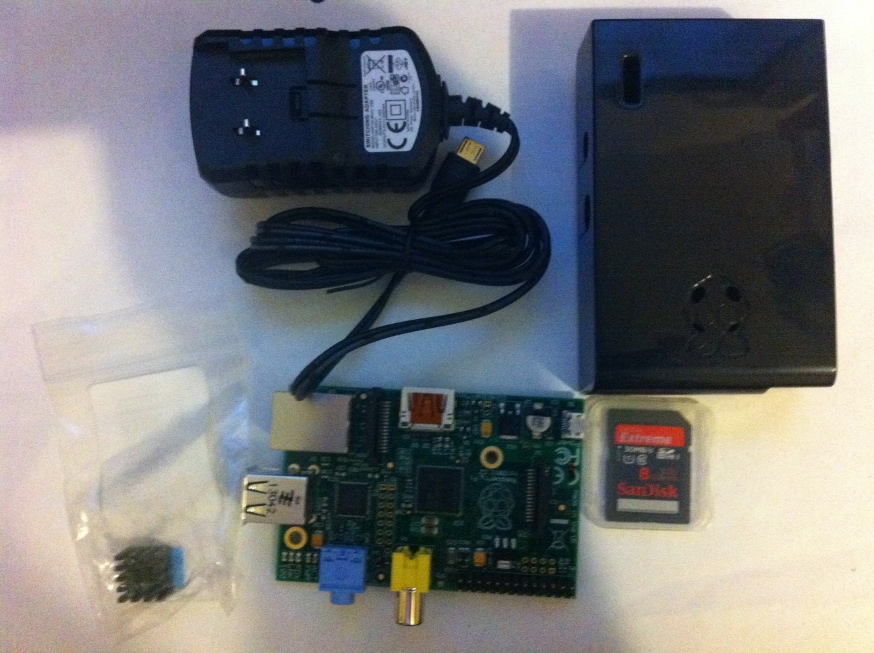
<p>My shopping list:<br>
Power Supply <a href=http://www.amazon.de/gp/product/B00BKZVWS8/ref=oh_details_o00_s00_i01?ie=UTF8&psc=1>link</a><br>
SD card (2 GB or larger) <a href=http://www.amazon.de/gp/product/B000Y9TZ9Y/ref=oh_details_o00_s01_i00?ie=UTF8&psc=1>link</a><br>
Raspberry pi <a href=http://www.amazon.de/gp/product/B008PT4GGC/ref=oh_details_o00_s00_i00?ie=UTF8&psc=1>link</a><br>
Housing for the pi <a href=http://www.amazon.de/gp/product/B00BKZVWS8/ref=oh_details_o00_s00_i01?ie=UTF8&psc=1>link</a><br>
extra cooler <a href=http://www.amazon.de/gp/product/B009A8ATOK/ref=oh_details_o00_s02_i00?ie=UTF8&psc=1>link</a><br></p>

<p>I added the links to amazon as well; not that this is always the best choice to buy, but it will get you an idea what to buy. I have chosen a bit of a faster SD card to not have to wait to long while copying the data to the SD card.<br>All sum-up to ﻿82,27 € for the complete setup.</p>

<p><img class="center" src="https://www.00010111.at/images/Rasp_parts.JPG" title="Parts" alt="images"></p>

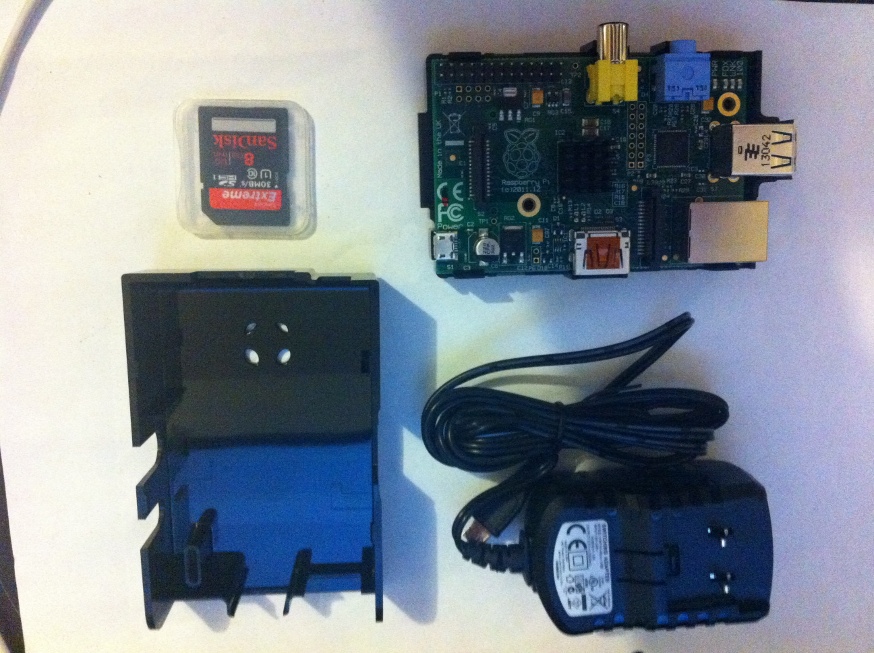
<p>The additional cooler is completely optional. I usually order these extra coolers because they tend to be really cheap and therefore “Why not?”.  To open the housing there are four clips on the bottom side. Just push them a bit to the outside and it will open.</p>

<p><img class="center" src="https://www.00010111.at/images/Rasp_parts2.JPG" title="Raspberry in housing" alt="images"></p>

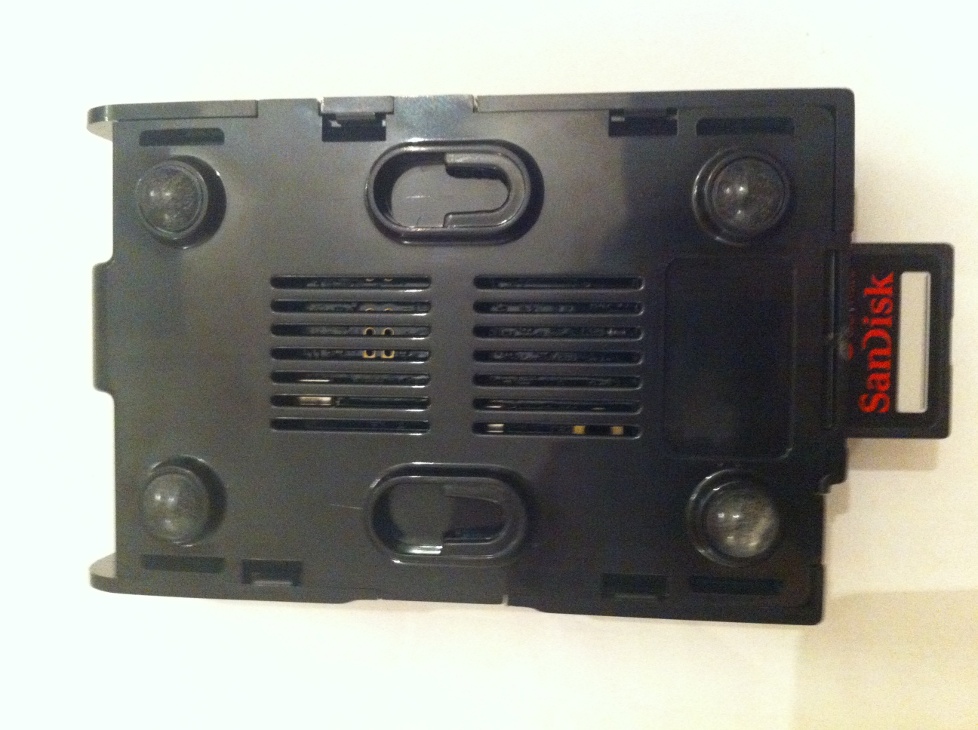
<p>Simply stick the cooler on the processor and push the Raspberry pi into the bottom housing. The complete assembly can be done without any screws, which is kind of nice. In the picture above you can see how it should look like after these steps. The picture below shows your new Tor node after closing the housing. I have chosen the backside because you are able to see the mentioned four clips in this perspective.</p>

<p><img class="center" src="https://www.00010111.at/images/Rasp_ass_back.JPG" title="Raspberry assambled back" alt="images"></p>

<p>Having all this done you can start downloading the image for the SD card. I have gone with Raspbian “wheezy” which you can download <a href=http://www.raspberrypi.org/downloads>here</a>. While the download finishes you can start to search the SD card reader. I think I have more than 3 of these things, but I personally never can find one when needed. If you are on Windows you can use <a href=http://sourceforge.net/projects/win32diskimager/>win32diskimager</a> to clone the operating system to the SD card. I assume that you are sitting on a *nix box for the following commands.  As image names or size may be changing over time the output should look similar to this but has not to exact this output:</p>

<figure class="code"><figcaption><span></span></figcaption><div class="highlight"><table><tbody><tr><td class="gutter"><pre class="line-numbers">
<span class="line-number">1</span>
<span class="line-number">2</span>
<span class="line-number">3</span>
</pre></td><td class="code"><pre><code class="line"><span class="line"><span class="l-Scalar-Plain">unzip 2012 – 07-15-wheezy-raspbian.zip</span>
</span><span class="line"><span class="l-Scalar-Plain">Archive:  2012 – 07-15-wheezy-raspbian.zip</span>
</span><span class="line"><span class="l-Scalar-Plain">  inflat­ing: 2012 – 07-15-wheezy-raspbian.img</span>
</span></code></pre></td></tr></tbody></table></div></figure>


<p>Now it is time to have a look to which device we would like to clone the freshly decompressed image file. df -h will show you which filesystems are present, now plug in your card reader/writer with the SD card inserted and run df -h again. From the difference of both outputs you will know which device you has to unmout to clone. It is simply that file system, that wasn’t present beforehand. Another hot tip on *nix: It should be something similar to /dev/sdb or /dev/sdc.</p>

<figure class="code"><figcaption><span></span></figcaption><div class="highlight"><table><tbody><tr><td class="gutter"><pre class="line-numbers">
<span class="line-number">1</span>
<span class="line-number">2</span>
<span class="line-number">3</span>
<span class="line-number">4</span>
<span class="line-number">5</span>
<span class="line-number">6</span>
<span class="line-number">7</span>
<span class="line-number">8</span>
<span class="line-number">9</span>
</pre></td><td class="code"><pre><code class="line"><span class="line"><span class="l-Scalar-Plain">df -h </span>
</span><span class="line"><span class="l-Scalar-Plain">.</span>
</span><span class="line"><span class="l-Scalar-Plain">df -h </span>
</span><span class="line"><span class="l-Scalar-Plain">.</span>
</span><span class="line"><span class="l-Scalar-Plain">umount /dev/sdb</span>
</span></code></pre></td></tr></tbody></table></div></figure>


<p>All data on the SD card will be overwritten, so please think now if there is data on it you might need later on. Otherwise, if the SD card is already empty or the data isn’t needed anymore, clone the OS to SD card.</p>

<figure class="code"><figcaption><span></span></figcaption><div class="highlight"><table><tbody><tr><td class="gutter"><pre class="line-numbers">
<span class="line-number">1</span>
<span class="line-number">2</span>
<span class="line-number">3</span>
<span class="line-number">4</span>
</pre></td><td class="code"><pre><code class="line"><span class="line"><span class="l-Scalar-Plain">sudo dd bs=1M if=2012– 07-15-wheezy-raspbian.img of=/dev/sdb</span>
</span><span class="line"><span class="l-Scalar-Plain"> 1850+0 records in</span>
</span><span class="line"><span class="l-Scalar-Plain"> 1850+0 records out</span>
</span><span class="line"><span class="l-Scalar-Plain"> 1939865600 bytes trans­ferred in 198.319278 secs (9781528 bytes/sec)</span>
</span></code></pre></td></tr></tbody></table></div></figure>


<p>After starting the cloning process, you can get yourself a coffee. There is enough time to get it while cloning. After the transfer is finished, take your SD card and insert it to the Raspberry pi. This is a thing I really liked, you are able to insert or remove the SD card without opening the housing.</p>

<p>Now it is time to wire up your Raspberry and connect power and Ethernet. It will boot up and fetch itself an IP Address form the DCHP server in your network.  You can find out the IP Address by looking at the DHCP Server, ping through the whole network or you simple know which IP Address it has to get. Let’s assume that my node got the internal IP Address 192.168.1.139.</p>

<figure class="code"><figcaption><span></span></figcaption><div class="highlight"><table><tbody><tr><td class="gutter"><pre class="line-numbers">
<span class="line-number">1</span>
<span class="line-number">2</span>
</pre></td><td class="code"><pre><code class="line"><span class="line"><span class="l-Scalar-Plain">ssh pi@192.168.1.139</span>
</span><span class="line"><span class="l-Scalar-Plain"># default password raspberry</span>
</span></code></pre></td></tr></tbody></table></div></figure>


<p>Default username for connecting is “pi” and the default password is “raspberry”. You definitely want to change the default password as the next step right?</p>

<figure class="code"><figcaption><span></span></figcaption><div class="highlight"><table><tbody><tr><td class="gutter"><pre class="line-numbers">
<span class="line-number">1</span>
</pre></td><td class="code"><pre><code class="line"><span class="line"><span class="l-Scalar-Plain">passwd pi</span>
</span></code></pre></td></tr></tbody></table></div></figure>


<p>This should do the trick and you can set a secure password now.</p>

<p>As a next step we want to add the Tor project package source and then add the gpg key used to sign the packages.</p>

<figure class="code"><figcaption><span></span></figcaption><div class="highlight"><table><tbody><tr><td class="gutter"><pre class="line-numbers">
<span class="line-number">1</span>
<span class="line-number">2</span>
<span class="line-number">3</span>
<span class="line-number">4</span>
<span class="line-number">5</span>
<span class="line-number">6</span>
<span class="line-number">7</span>
<span class="line-number">8</span>
</pre></td><td class="code"><pre><code class="line"><span class="line"><span class="l-Scalar-Plain">sudo vi /etc/apt/sources.list</span>
</span><span class="line"><span class="l-Scalar-Plain"># use new password for the pi user here</span>
</span><span class="line"><span class="l-Scalar-Plain"># add this line to your source list</span>
</span><span class="line"><span class="l-Scalar-Plain">deb http://deb.torproject.org/torproject.org wheezy main</span>
<span><span class="line"><span class="l-Scalar-Plain"># save file and exit</span>
<span><span class="line"><span class="l-Scalar-Plain"># know add the key</span>
</span><span class="line"><span class="l-Scalar-Plain">gpg --keyserver keys.gnupg.net --recv 886DDD89</span>
</span><span class="line"><span class="l-Scalar-Plain">gpg --export A3C4F0F979CAA22CDBA8F512EE8CBC9E886DDD89 | sudo apt-key add -</span>
</span></code></pre></td></tr></tbody></table></div></figure>


<p>Now we can get up really close to it. Install the Tor package and do not forget to update all packages before.</p>

<figure class="code"><figcaption><span></span></figcaption><div class="highlight"><table><tbody><tr><td class="gutter"><pre class="line-numbers">
<span class="line-number">1</span>
<span class="line-number">2</span>
<span class="line-number">3</span>
<span class="line-number">4</span>
</pre></td><td class="code"><pre><code class="line"><span class="line"><span class="l-Scalar-Plain">sudo apt-get update</span>
</span><span class="line"><span class="l-Scalar-Plain">sudo apt-get dist-upgrade</span>
</span><span class="line"><span class="l-Scalar-Plain">sudo apt-get install deb.torproject.org-keyring</span>
</span><span class="line"><span class="l-Scalar-Plain">sudo apt-get install tor</span>
</span></code></pre></td></tr></tbody></table></div></figure>


<p>As the package is prepared to have Tor running with the user “debian-tor” you can either change the permissions to meet another user or you create this user on your system.</p>

<figure class="code"><figcaption><span></span></figcaption><div class="highlight"><table><tbody><tr><td class="gutter"><pre class="line-numbers">
<span class="line-number">1</span>
<span class="line-number">2</span>
</pre></td><td class="code"><pre><code class="line"><span class="line"><span class="l-Scalar-Plain">sudo adduser debian-tor</span>
</span><span class="line"><span class="l-Scalar-Plain">sudo passwd debian-tor</span>
</span></code></pre></td></tr></tbody></table></div></figure>


<p>Let’s go for adding the “debian-tor” user to the system and set a random password for him.
For editing the configuration of Tor you need to edit the file “/etc/tor/torrc”. Choose your favourite editor, which is either already installed or you should be able to install it via apt-get, and edit the configuration to fit your needs. At least you should have to have this lines adopted:</p>

<figure class="code"><figcaption><span></span></figcaption><div class="highlight"><table><tbody><tr><td class="gutter"><pre class="line-numbers">
<span class="line-number">1</span>
<span class="line-number">2</span>
<span class="line-number">3</span>
<span class="line-number">4</span>
<span class="line-number">5</span>
<span class="line-number">6</span>
<span class="line-number">7</span>
<span class="line-number">8</span>
<span class="line-number">9</span>
</pre></td><td class="code"><pre><code class="line"><span class="line"><span class="l-Scalar-Plain">RunAsDaemon 1 #makes Tor run as a deamon</span>
</span><span class="line"><span class="l-Scalar-Plain">ORPort 9001 #or 443 if you can offer this service on that port</span>
</span><span class="line"><span class="l-Scalar-Plain">DirPort 9030 #or 80 if you can offer this service on that port</span>
</span><span class="line"><span class="l-Scalar-Plain">ExitPolicy reject *:* # to be a node only</span>
<span><span class="line"><span class="l-Scalar-Plain">Nickname xxx #you can chose whatever you like</span>
<span><span class="line"><span class="l-Scalar-Plain">RelayBandwidthRate 100 KB # Throttle traffic to 100KB/s (800Kbps)</span>
</span><span class="line"><span class="l-Scalar-Plain">RelayBandwidthBurst 200 KB # But allow bursts up to 200KB/s (1600Kbps)</span>
</span><span class="line"><span class="l-Scalar-Plain">ContactInfo \<XXX\> # Do not use your day to day e-mail address here, make up a new one.</span>
</span><span class="line"><span class="l-Scalar-Plain">User debian-tor # give Tor the info under which user it should run</span>
</span></code></pre></td></tr></tbody></table></div></figure>


<p>I personally prefer to disable all logging on that divice as much a possilble, there I commented every line regarding logging out. Saving the file and restart your raspberry.</p>

<figure class="code"><figcaption><span></span></figcaption><div class="highlight"><table><tbody><tr><td class="gutter"><pre class="line-numbers">
<span class="line-number">1</span>
</pre></td><td class="code"><pre><code class="line"><span class="line"><span class="l-Scalar-Plain">sudo shutdown -r now</span>
</span></code></pre></td></tr></tbody></table></div></figure>


<p>After your Pi has successfully restarted, the Tor process is already started and you should have a look at /var/log/tor/log for any problems around building circuits, connectivity or access on the configuration file. I recommend to setup a dedicated IP on your DCHP for the Tor node or configure your node to use a static one. As this highly depends on the DCHP server you are using I will not cover this here.
And you are done. Incredibly easy right?</p>
]]></content>
  </entry>
  
  <entry>
    <title type="html"><![CDATA[Changed search engine to duckduckgo]]></title>
    <link href="https://www.00010111.at/blog/2013/05/22/changed-search-engine-to-duckduckgo/"/>
    <updated>2013-05-22T23:28:00+02:00</updated>
    <id>https://www.00010111.at/blog/2013/05/22/changed-search-engine-to-duckduckgo</id>
    <content type="html"><![CDATA[<p>I recently changed the search engine of this blog to duckduckgo. I thought it would be a good idea, cause duckduckgo promise not to be the omnipresent data collector. If we could believe them&hellip;. I think it does not matter if we believe them or not. We can simply choose between a) we know they collect and b) the promise not to collect. What is the worst case for b)? They collect and lie to us. So worst case for b) is, it is equal to a). I personally would go for b) then.<br>
Therefore I change my <code>_config.yml</code> file the following way:<br></p>

<figure class='code'><figcaption><span></span></figcaption><div class="highlight"><table><tr><td class="gutter"><pre class="line-numbers"><span class='line-number'>1</span>
</pre></td><td class='code'><pre><code class='sh'><span class='line'>simple_search: https://duckduckgo.com/</span>
</span></code></pre></td></tr></table></div></figure>


<p>After newly generating the content it simple works.</p>
]]></content>
  </entry>
  
  <entry>
    <title type="html"><![CDATA[Kali Linux in VirtualBox]]></title>
    <link href="https://www.00010111.at/blog/2013/04/22/kali-linux-in-virtualbox/"/>
    <updated>2013-04-22T21:08:00+02:00</updated>
    <id>https://www.00010111.at/blog/2013/04/22/kali-linux-in-virtualbox</id>
    <content type="html"><![CDATA[<p>A while ago Kali Linux was released by offensive security. Kali Linux is the successor of the broadly known pentest distribution BackTrack. More info on Kali Linux can be found on <a href="http://www.kali.org/">www.kali.org</a>.<br>
As I was curious about the new look and feel I started to create a VM with VirtualBox and install Kali Linux to it.
I choose to start with the 32 bit version, cause I still need a fully installed Windows to update the BIOS of my actual working machine.
But 3 GB Ram, 1 core and 30 GB of disk space should fit the needs very well.</p>

<p>Starting the VM you get a warm welcome with the boot menu.
<img class="center" src="https://www.00010111.at/images/Kalilinux_install1.png" title="Kali Linux welcome" alt="images"></p>

<p>Let’s choose “Graphical install” for now.
Having this choose a standard and not untypical installer process guides you through the setup of language, keyboard setting and so on. After giving the machine a hostname and domain where it is located in, the first “I like” moment appeared. You now have to set the root password within the install process.
<img class="center" src="https://www.00010111.at/images/Kalilinux_install2.png" title="Kali Linux choose root pws" alt="images"></p>

<p>To be honest&hellip; everyone dealing with a distribution made for pentesting should know that the default password has to be changed immediately and everyone dealing with a distribution made for pentesting should at least know how to google the needed command to change the root password &hellip; BUT how many of you have never ever run a backtrack machine with the root password “toor” ?</p>

<p>The next step brings me to the next “I like” moment. It is now a standard option to use encrypted LVM partitions. Very convenient!</p>

<p><img class="center" src="https://www.00010111.at/images/Kalilinux_install3.png" title="Kali Linux disk encryption" alt="images"></p>

<p>So we go for it, choose to put all files in one partition and save the new partition schemata to the disk.
Now we start waiting until the disk is fully erased. This took a bit longer than I expect, but after two “I like” moments so far, I don’t want to start complaining about peanuts. 30 GB of disk space needed nearly 90 minutes. You will be able to skip this step over by hitting the cancel button. I tried it without having any problems further on.<br>
Afterwards you set your full disk encryption password and the installer guides us through the rest of the installation process. Nothing unusual or surprising.</p>

<p>And TADA&hellip;&hellip; nope that is not a running VM with Kali Linux.
It is a VM starting up and throwing errors. I then tried to install Kali Linux several times without success and a bit of time went through. A few weeks later I got another day with enough motivation to work again on my VM problem.<br>
 I started to google around and found a blog post on raidersec.blogspot.co.at describing how to install Kali Linux on VirtualBox. At the end of <a href="http://raidersec.blogspot.co.at/2013/03/installing-kali-linux-in-virtualbox.html">the blog post</a> the solution was described.
You simple need to check one box that seems to be not activated by default. If you right click on your brand new VM, hit settings and select the “System” entry you will see a tab called “Processor”.  Activate the “Processor” tab and check the box called “Enable PAE/NX”.</p>

<p><img class="center" src="https://www.00010111.at/images/Kalilinux_install4.png" title="VM processor settings" alt="images"></p>

<p>Save the settings and start your VM. It should now start without errors and present a login screen.
I the end I would recommend to create the VM, enable PAE/NX and start to install the system afterwards.</p>
]]></content>
  </entry>
  
  <entry>
    <title type="html"><![CDATA[Funny “feature” in octopress.]]></title>
    <link href="https://www.00010111.at/blog/2013/02/21/funny-feature-in-octopress/"/>
    <updated>2013-02-21T23:12:00+01:00</updated>
    <id>https://www.00010111.at/blog/2013/02/21/funny-feature-in-octopress</id>
    <content type="html"><![CDATA[<p>While playing around with my brand new octopress I was thinking of the title for the blog.
While I was experimenting I entered 00010111 as title, which is basically the domain. After generating the preview and refreshing my browser window I was a bit surprised. The title said “4169“, obviously not what I had I mind. But&hellip; WTF?<br>
After checking if I really had set the title to 00010111 in the config file, i tried 00000001 which brought me to the new title “1“. Okay that was expected.
I tried a bit more: 00000010 => 8; 00000011 => 9.
Correct &hellip; the zeros and ones were parsed based to 8, if you are leaving out the surrounding  quotes.<br>
A quick twitter conversation with @octopress and it was clear that this is no easter egg. What a pity. YAML simply sees the title as a number if you are leaving out the quotes and not as a string.</p>
]]></content>
  </entry>
  
  <entry>
    <title type="html"><![CDATA[It's alive]]></title>
    <link href="https://www.00010111.at/blog/2013/02/17/it-is-alive/"/>
    <updated>2013-02-17T14:44:00+01:00</updated>
    <id>https://www.00010111.at/blog/2013/02/17/it-is-alive</id>
    <content type="html"><![CDATA[<p>So finally it is done: I moved my blog from Drupal to Octopress. I did not migrate  the old posts form the Drupal blog, this would not have been worth the effort. Due to the good documentation it was quit easy to get started playing around with Octopress. In the end I only did some minor changes to the default theme to get satisfied with the look.<br>So let’s see if I will use the blog more than the old one.</p>
]]></content>
  </entry>
  
</feed>